How to Connect Claude to Your Bank Accounts (5 Minutes, No Coding)

Junior Y.
Founder, Spendify

You can use Claude for personal finance two ways. The slow way: paste your numbers into the chat every time, hope you don’t forget anything, accept that Claude can’t remember what changed last week.
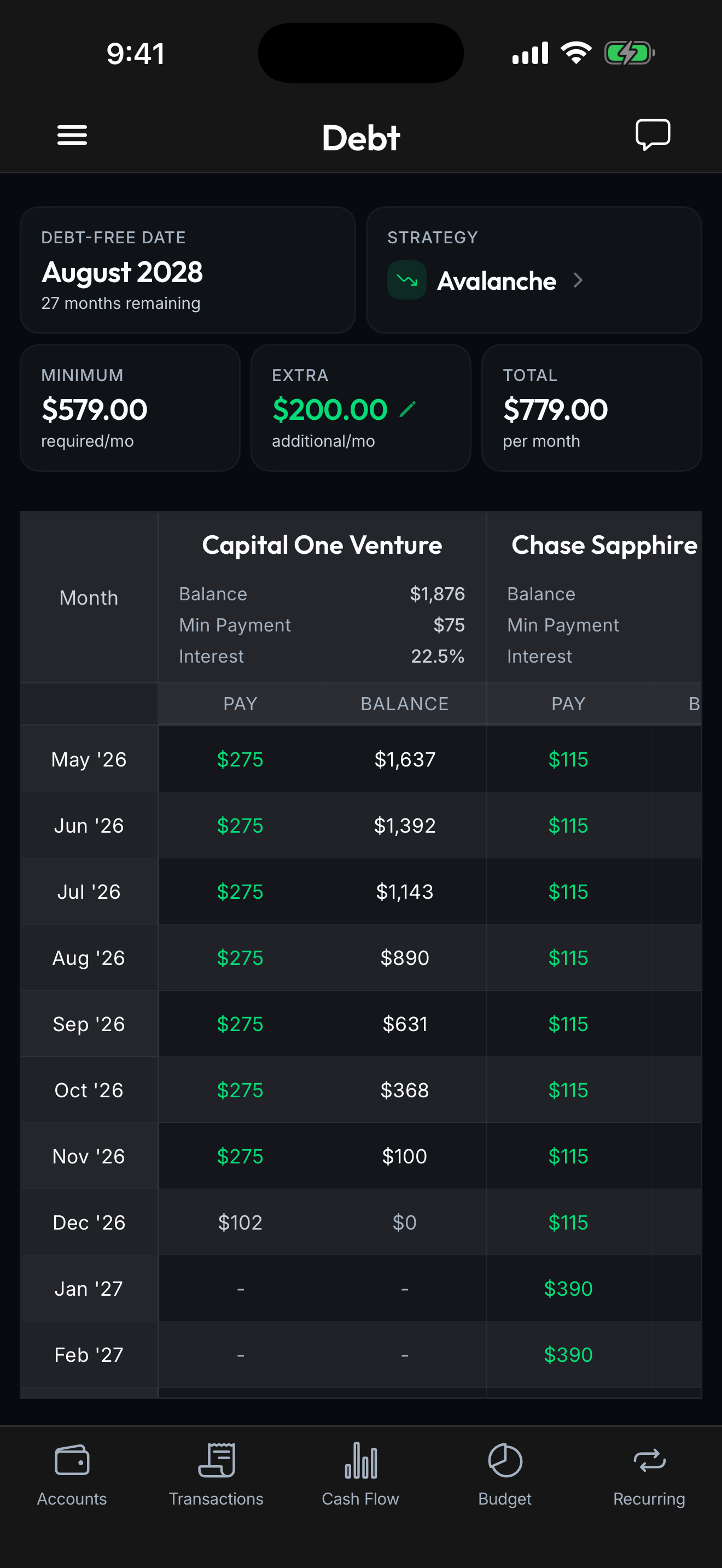
The fast way: connect Claude to your Spendify account once. From then on, Claude knows what you actually spend, what your balances actually are, and what your debt-free date actually is. You ask in plain English; Claude pulls real data on demand. No copy-paste.
This is how to set that up. It takes about 5 minutes and you do not need to know how to code.
Disclosure: This is a setup guide for Spendify’s MCP server. We make Spendify. Spendify is the first first-party personal-finance app shipping an MCP server (Bud has an enterprise one; Copilot Money has an unofficial community-built one, and neither is supported by the company).
What you’ll have when you’re done
- Claude (web, Desktop, CLI, or in Cursor/VS Code) connected to your Spendify account
- 30+ tools Claude can call: list transactions, get spending by category, check budget, find recurring charges, run debt math against your real plan, and more
- A read-only connection. Claude cannot move money. Cannot delete accounts. Cannot touch your bank login.
- The ability to disconnect access at any time from your AI tool’s settings
What you’ll need
- A Spendify account. Sign up here if you don’t have one. Try free for 7 days via the App Store or Play Store.
- At least one bank account connected. Without connected data, there’s nothing for Claude to query.
- A Claude account. Free plan works for Claude.ai; Desktop is free to install separately.
- 5 minutes.
Setup, by client
Pick the client you actually use. You can configure more than one. The connection is per-client, not per-account.
Option A: Claude.ai (web), 1 minute
- Open claude.ai/settings/connectors.
- Click Add custom connector at the bottom of the page.
- Paste this URL:
https://api.spendify.money/mcp - Click Add.
- Open any new chat, click the + button, and enable Spendify.
- The first time you use it, Claude opens a browser window to sign in to Spendify. Sign in, approve the connection.
Done. Ask Claude “what’s my biggest spending category this month?” and it will pull real data.
Free plan note: Claude Free supports one custom connector. Make it Spendify. Claude Pro and Max have no limit.
Option B: Claude Desktop, 2 minutes
- Open Claude Desktop → Settings → Developer → Edit Config.
- Paste this into
claude_desktop_config.json:
{
  "mcpServers": {
    "spendify": {
      "url": "https://api.spendify.money/mcp"
    }
  }
}- Save the file and restart Claude Desktop.
- The Spendify tool will appear in the tool list at the bottom of the chat. Click it, sign in via the browser window.
Option C: Claude Code (CLI), 30 seconds
Easiest setup of any client. Run:
claude mcp add --transport http spendify https://api.spendify.money/mcpThat’s it. Next time you start a Claude Code session, the Spendify tools will be available.
Option D: VS Code with Claude, 2 minutes
- Open VS Code settings (
Cmd+,/Ctrl+,) → search for “MCP”. - Click Edit in settings.json.
- Add to your
settings.json:
{
  "mcp.servers": {
    "spendify": {
      "url": "https://api.spendify.money/mcp"
    }
  }
}- Reload VS Code. The Spendify tools appear under the Claude extension.
Option E: Cursor, 2 minutes
- In your project root, create or open
.cursor/mcp.json. - Paste:
{
  "mcpServers": {
    "spendify": {
      "url": "https://api.spendify.money/mcp"
    }
  }
}- Restart Cursor. Spendify tools become available in the AI panel.
First-run authentication
The first time you use the connection in any client, Claude (or Cursor, or VS Code) opens a browser window asking you to sign in to Spendify and approve the connection. No API keys. No manual token copy-pasting. Sign in, approve, you’re done. The token is stored securely by the client and refreshes automatically.
10 questions to try once it’s working
You’ll want to test it. These are the prompts that show off what’s actually different from a regular Claude chat:
- Daily money check-in: “What did I spend yesterday? Anything unusual?”
- Category audit: “What are my top 5 spending categories this month, with totals and % of total spending?”
- Subscription hunt: “Find every recurring charge across all my accounts. Group by amount. Flag anything that looks like a forgotten subscription.”
- The “where did the money go” question: “Compare my spending this month to last month. What categories changed the most?”
- Budget reality check: “Which budget categories am I over on, and by how much? Which have headroom?”
- Coffee math (the classic): “How much have I spent on coffee/cafes in the last 90 days? What’s the daily average?”
- Debt math against real numbers: “Given my actual card balances and APRs, how much would I save in interest if I redirected $200/month from dining to my highest-APR card?”
- The “find me $X” challenge: “Find me $300/month I could cut without ruining my life. Be specific: name the categories and merchants.”
- Forecast: “Based on my last 3 months of spending and my current balances, am I on track to hit my emergency fund goal by [date]?”
- Tax-prep prep: “Pull every business-deductible-looking transaction from the last 90 days. Group by likely category.”
The point isn’t that Claude is smart. It’s that Claude has access to your real numbers in real time. Same Claude, very different output.
What Claude can and can’t do
Can do (read-only):
- List accounts and balances
- Browse transactions with filters
- Get spending by category, merchant, day, month
- Check budget vs actual
- List recurring charges and upcoming bills
- See debt accounts, APRs, minimums
- Preview categorization rules
Can do (small, scoped writes, all visible in Spendify’s activity log):
- Update a transaction’s category, notes, or tags
- Create a custom category
- Set or modify a budget amount
- Create a categorization rule
- Add or remove tags
Cannot do:
- Move money
- Change account passwords
- Touch your bank login
- Disconnect a bank account
- Cancel your Spendify subscription
- Access another user’s data (scoped to your account only)
Full tool list on the MCP page →
Troubleshooting
“Claude can’t find Spendify tools”
- Claude.ai: Make sure the connector is enabled in this specific chat. Click the + button in the chat composer; Spendify should appear with a toggle on.
- Desktop/VS Code/Cursor: Did you restart the app after editing the config? Required.
- Claude Code: Run
claude mcp listto confirm Spendify is registered.
“Authentication failed”
- Sign out of Spendify in your browser, then retry the connection. Stale sessions sometimes break the OAuth handshake.
- Make sure you’re using the same email for Claude and Spendify (you can connect different emails, but most authentication issues are mismatch-related).
“Tools fail with ‘no data’”
- Open Spendify and confirm at least one bank account is connected and syncing. The MCP server can only return data the app has.
Multiple workspaces
- Spendify supports unlimited workspaces (e.g., personal + household + business). The MCP connection respects your active workspace at the time of the query. Switch workspaces in the Spendify app before asking workspace-specific questions.
Disconnect at any time
From your AI tool:
- In Claude (web or Desktop): Settings → Connectors
- Find Spendify
- Remove the connector (for Claude Code or an IDE, remove the server from your MCP config)
Once removed, the tool stops querying your data, and the stored authorization expires on its own. If you ever want a connection revoked server-side, contact support@spendify.money and we’ll revoke it. You can re-authorize later by adding the connector again and approving the prompt.
What’s coming next on the MCP roadmap
- Account-scoped write permissions (mark transactions as reimbursable, attach receipts)
- Bulk transaction operations (recategorize 100 transactions in one call)
- Goals API (set, modify, check progress)
- Push notifications back to the app when an AI tool creates or modifies records (so you can audit)
Why MCP changes how AI works with money
Every other “AI for personal finance” approach in 2026 has the same problem: the AI doesn’t have your numbers. You paste them in (slow, redact-able mistakes), upload a CSV (stale within hours), or use the finance app’s in-house AI (locked into one vendor’s model).
MCP fixes all three. The AI you already use, like your Claude, your ChatGPT-via-CLI, your Cursor, queries your finance app directly, on demand, with permissions you control. No copy-paste. No stale data. No lock-in.
Spendify shipped this first among first-party finance apps. We don’t think we’ll be the last. But while we’re early, the bar to set up an AI that genuinely knows your finances is exactly the 5 minutes you just spent.
See the full Spendify MCP server → · Connect your finances to AI with MCP · ChatGPT vs Claude vs Gemini for personal finance · Is it safe to give AI your financial data?